Setup Flutter Project
MeGooLive Flutter Project is the main project that you will work on, this project is build on top of Flutter and we use GetX for state management, we try to make as clean as possible and easy to understand, we will setup this flutter project in this section.
Step No.1 Open Project in Visual Studio Code
- Extract the downloaded MeGooLive project zip file to your desired location
- Open Visual Studio Code
- Go to File > Open Folder (or press Ctrl+K Ctrl+O)
- Navigate to the extracted
mee_goo_liveproject folder - Click "Select Folder" to open the project
Or
- Open CMD if you use windows
- Go to
/mee_goo_livedirectory - and type
code .
You should now see the project structure in the VS Code explorer panel on the left side.
Project Structure Overview
The main project folders you'll work with:
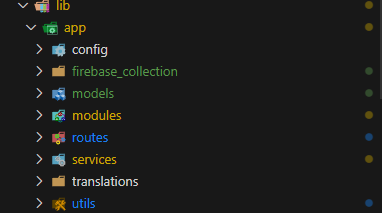
lib/app- Contains all the Flutter source codeconfig/- Contains all the configuration filesfirebase_collection/- Contains all the firebase collection, that you can use to store your data in firebasemodels/- Contains all the class models, like user, room, message, etc.modules/- Contains all the pages of the app, like home, profile, settings, etc.services/- Contains all the services, like api, database, storage, etc.utils/- Contains all the utils, like helper, constant, etc.translations/- Contains all the translations, like en, id, etc.
Step No.2 Install Dependencies
Once the project is open:
Step No.2 Install Project Dependencies
Once MeGooLive Flutter project opens in Visual Studio code or in Android Studio, we will install all the dependencies
when you open MeGooLive Flutter project for the first time in Visual Studio Code, Usually a dialog will appear in the bottom right corner, asking you to directly install all dependencies, just click Get packages
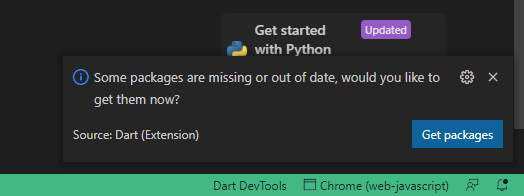
but if the dialog doesn't appear, or an error occurs while installing dependencies, you can directly install all dependencies in the following way
- open terminal in Visual Studio Code
CTRL + `orClick Terminal -> New Terimal - type
flutter pub get - once that's done, all dependencies should be installed
You're now ready to start working with the MeGooLive Flutter project!