Create SVGA Animation
SVGA Animation is primarily made by Chinese developers, and it's made using Adobe After Effect.
We try to create SVGA Animation using Adobe After Effect, with latest version, but it's not supported yet, so the Adobe After Effect version that works is Adobe After Effect CC 2019.
Step 1: Download Adobe After Effect CC 2019
- Download Adobe After Effect CC 2019 from here.
Step 2: Install
- Download SVGA Plugin here : SVGA Plugin
- Unzip the installer package
- Run install.exe -> Install Now
Step 3: Create SVGA Animation
-
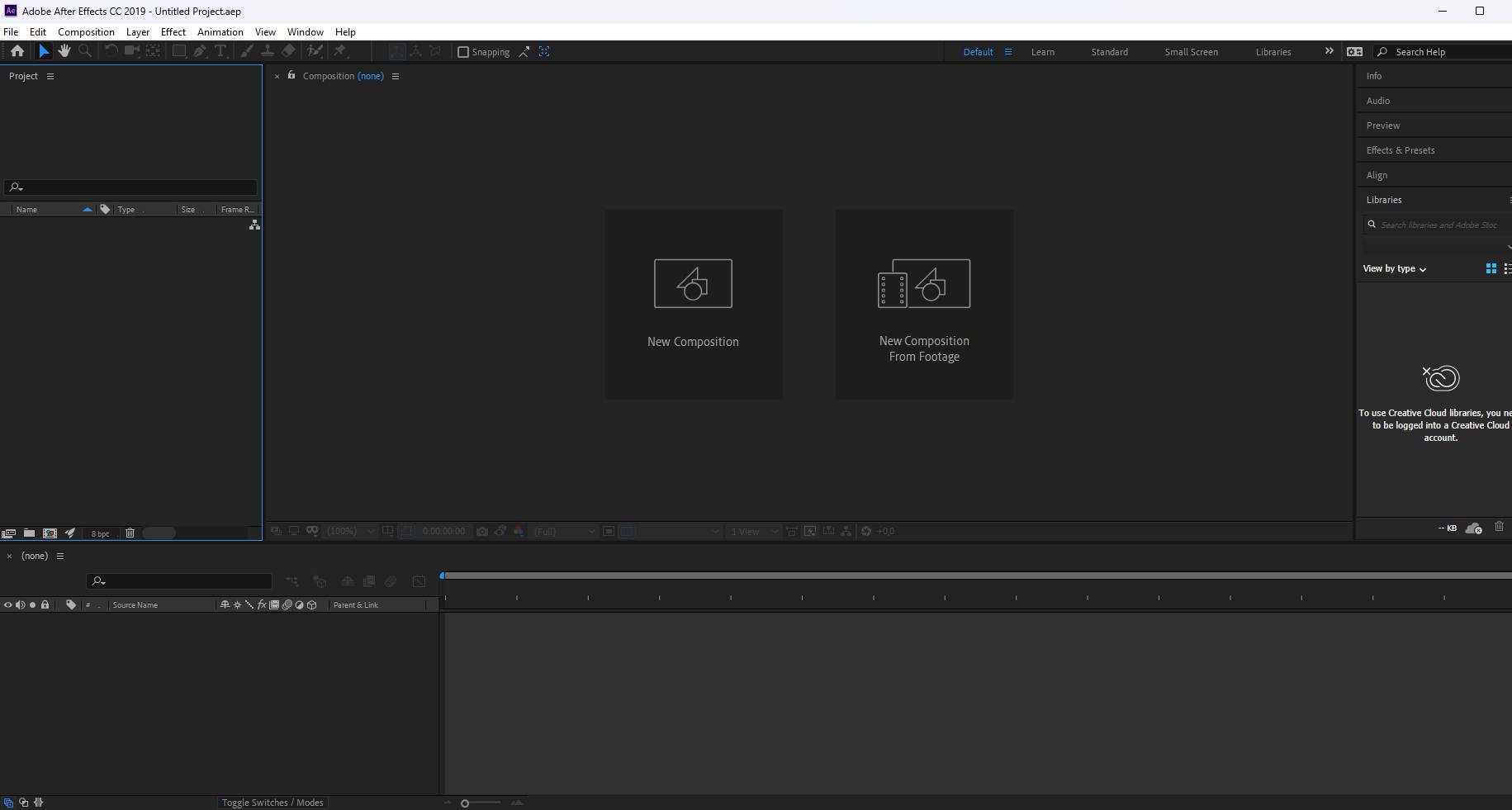
Open Adobe After Effect CC 2019, and create a new project.
-
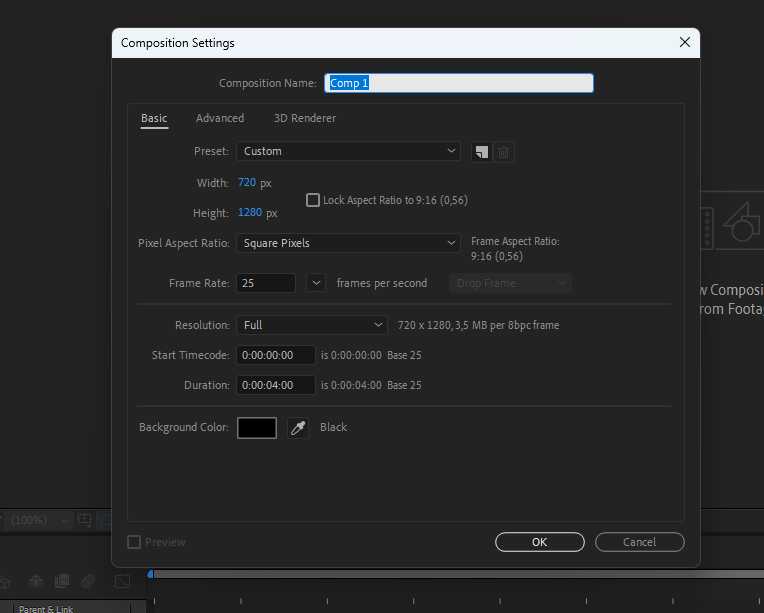
for this example project, we will use the Width: 720 and Height: 1280, you can increase the size if you want to make it more detailed.
-
Click
Okto create the project.
-
After creating the project, we will need to import our snowball image assets.
-
Our Goal is to create a simple animation, animation of throwing snowball, like in this page
-
you can download the snowball image assets here : [Snowball Assets](Snowball Assets
-
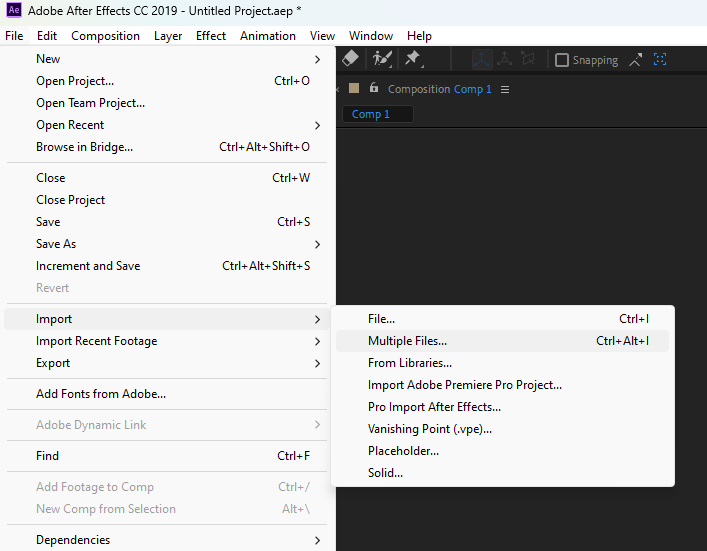
Let's import our snowball image to the project, click
File->Import->Multiple Files
For the next part, it will be quite long if i explain it using text and screenshot, so i will explain it using video.
- After creating the keyframe, we will need to hide the snowball, and show the snoball_hit_effect
-
After our animation is completed, we will export it using the SVGA tool, goto
Window->Extension->SVGAConverter_AE -
Save to your desire location, we will upload that SVGA to the Admin Dashboard