Create Android App in Firebase Project
After creating a firebase project, in this project we can create several apps with different configuration, here we will create MeGooLive Android App.
Create MeGooLive Android App
- Click android icon
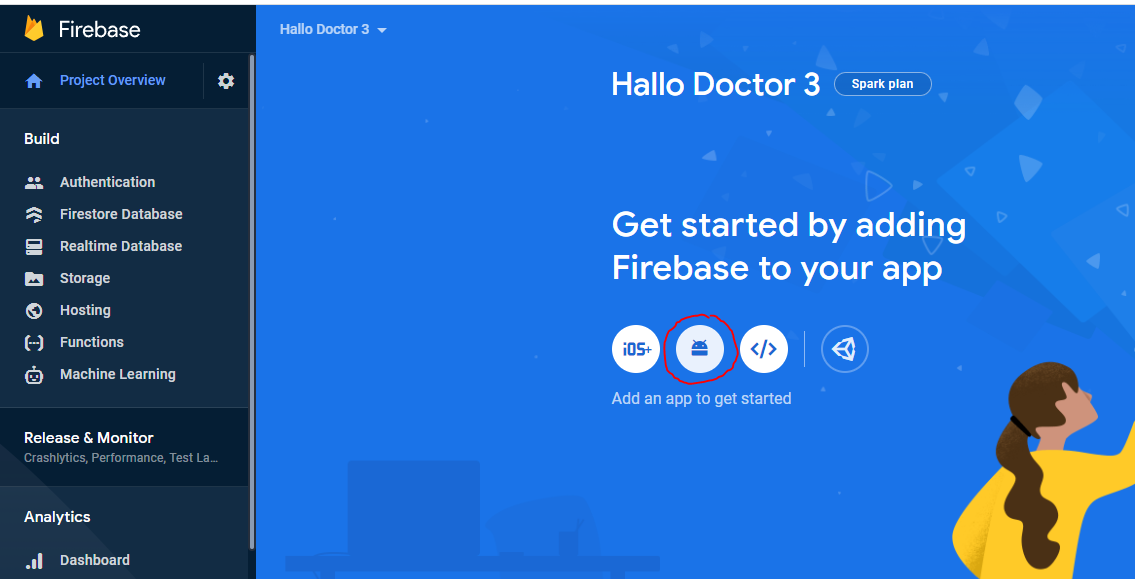
-
After that we are required to fill in three information about our app,
Package Name,App Name, andSH1 Key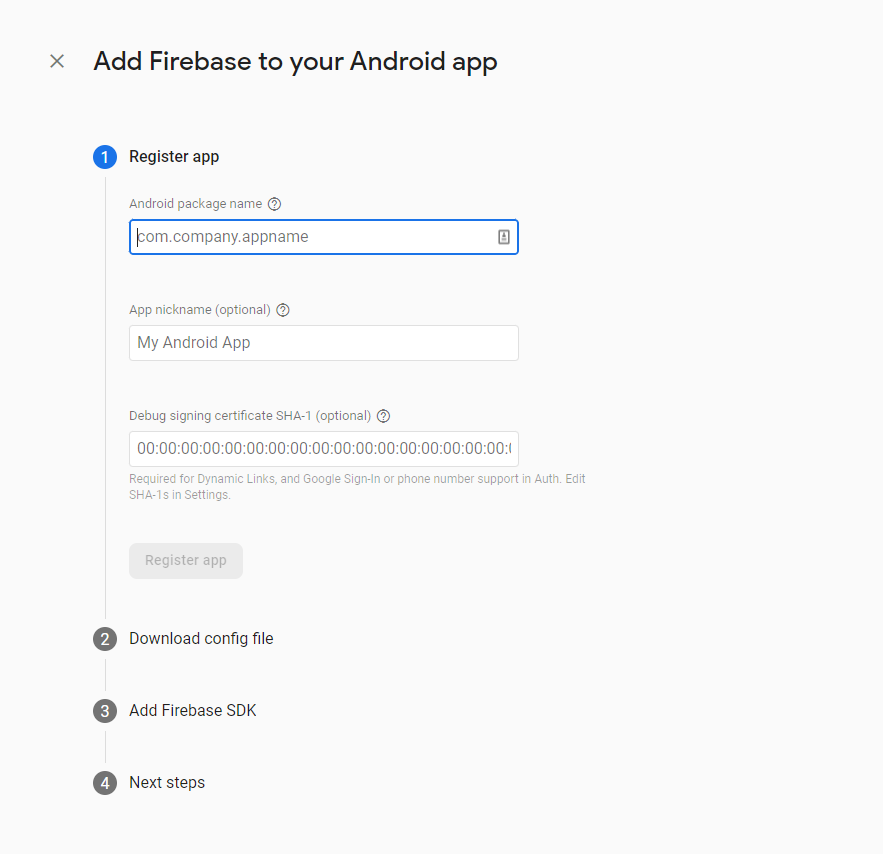
-
first we need the package name of our app, to get the package name of our app
Get Package name
- in your Project Flutter
mee_goo_live, which was already open using visual studio code, or Android Studio
Package names in Android serve as unique identifiers for your app. They follow these conventions:
- Must have at least two segments (one dot)
- Written in all lowercase
- Each segment should start with a letter
- Only letters, numbers, and underscores are allowed
- Common format:
com.companyname.appname
Examples:
- ✅
com.google.android - ✅
io.flutter.myapp - ✅
com.company.app_name - ❌
com.MyApp(uppercase not allowed) - ❌
com.my-app(hyphens not allowed) - ❌
com(needs at least two segments)
- For your app, choose a package name that follows this structure:
- First segment: Domain extension (
com,io,org) - Second segment: Your company/organization name
- Third segment: Your app name
com.meegoo.live - First segment: Domain extension (
Once you publish your app on the Google Play Store, the package name cannot be changed. Choose carefully!
-
we will change the default package name of this app to your package name, this will be very easy and fast because this project already uses
change_app_package_nameflutter package https://pub.dev/packages/change_app_package_name -
run the command below, but first change
com.mycompany.myappname, to your package name
flutter pub run change_app_package_name:main com.mycompany.myappname
- if successful it will look like this
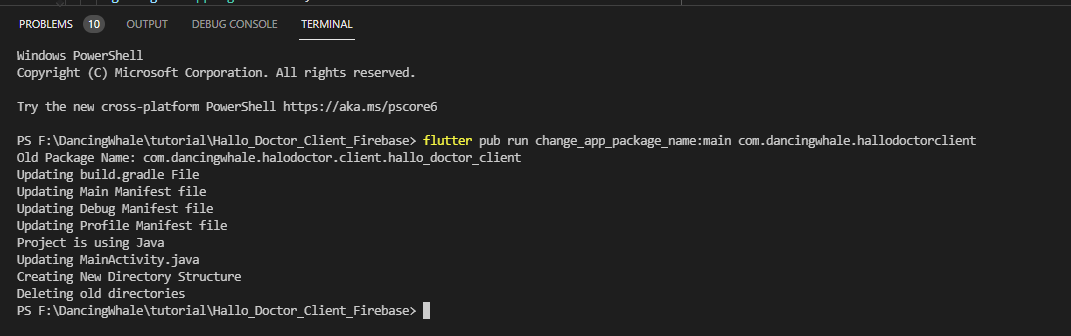
- so after that, the package name in your
mee_goo_liveapp has all changed, and you can copy the package name to firebase - and add your App nickname
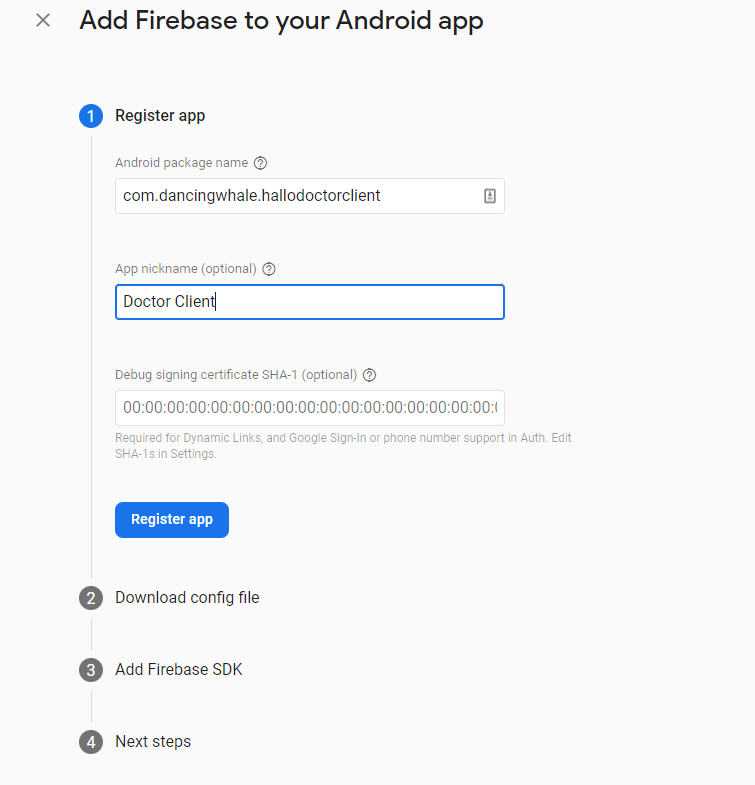
-
for debug signing, we can fill it later, just click register app
-
after that you have to download the
google-service.jsonfile
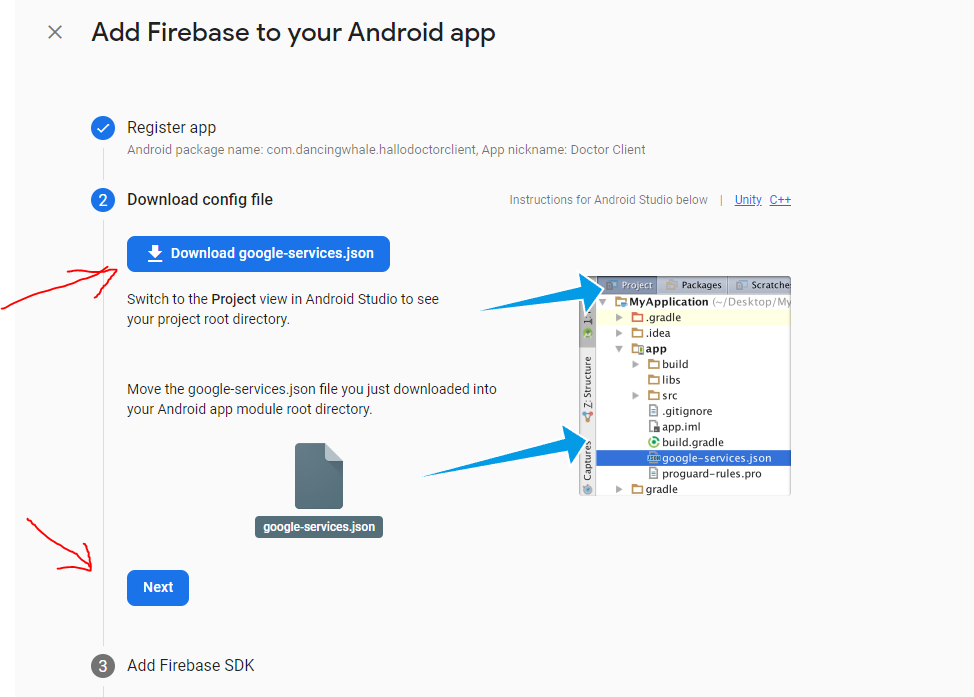
- and copy the file into your
mee_goo_liveflutterproject in the directoryandroid/app/
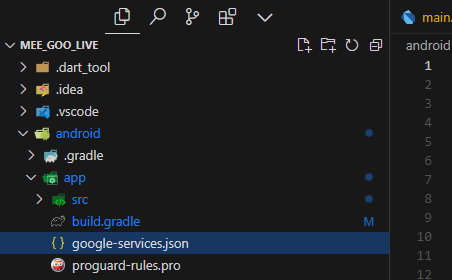
if there is already a google-services.json file in that folder, replace it with the new file you just downloaded. Make sure the filename is exactly google-services.json without any typos.
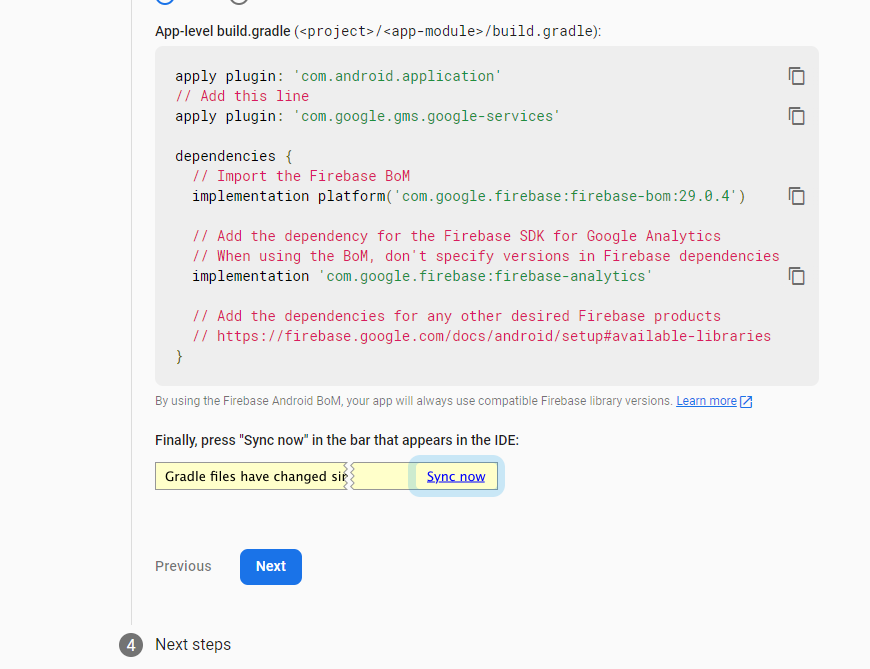
- after that click next in firebase,
- and click Continue to console
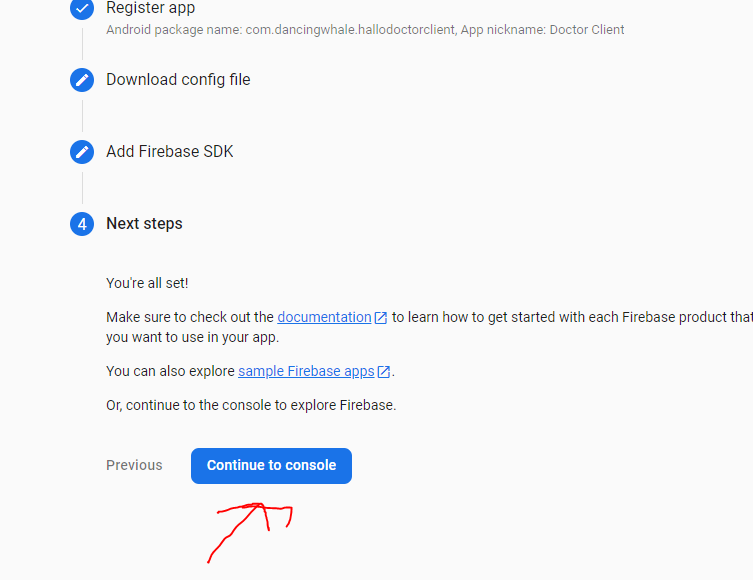
- Congratulations! Your app is now registered.
- However, we still need to enable some Firebase features for our app, such as authentication for login functionality. Let's proceed to the next section.