Route Traffic to Node Media Server with Nginx
After we have installed the Node Media Server, we need to setup Nginx to forward the traffic to the Node Media Server, this is because the Node Media Server is running on our Droplet Server locally, we need to setup Nginx to forward the traffic to the Node Media Server, right now our Nginx is route traffic to default html folder, we need to change it.
Setup Nginx
- On your Droplet Server Terminal, we need to create new file on nginx site-available.
- run the command below to create and open new file, but change the domain name with your domain name.
sudo nano /etc/nginx/sites-available/stream.dancingwhale.my.id
- it will open the nano editor, and we to add the configuration below, but change the domain name with your domain name.
- also change
https://meegoolive-f8b35.firebaseapp.comwith your firebase hosting domain, to get your firebase hosting domain, you can go to your firebase project, and then click on the hosting, and then you will see the domain name.
server {
    server_name dcwhale.my.id;

    listen [::]:443 ssl;
    listen 443 ssl;
    ssl_certificate /etc/letsencrypt/live/dcwhale.my.id/fullchain.pem;
    ssl_certificate_key /etc/letsencrypt/live/dcwhale.my.id/privkey.pem;
    include /etc/letsencrypt/options-ssl-nginx.conf;
    ssl_dhparam /etc/letsencrypt/ssl-dhparams.pem;

    client_max_body_size 100M;

    location / {
        proxy_pass http://localhost:8000;
        proxy_http_version 1.1;
        proxy_set_header Upgrade $http_upgrade;
        proxy_set_header Connection "upgrade";
        proxy_set_header Host $host;
        proxy_set_header X-Real-IP $remote_addr;
        proxy_set_header X-Forwarded-For $proxy_add_x_forwarded_for;
        proxy_set_header X-Forwarded-Proto $scheme;
        proxy_cache_bypass $http_upgrade;
    }

    location /api {
        # Remove any existing CORS headers from the backend
        proxy_hide_header 'Access-Control-Allow-Origin';
        proxy_hide_header 'Access-Control-Allow-Methods';
        proxy_hide_header 'Access-Control-Allow-Headers';
        proxy_hide_header 'Access-Control-Allow-Credentials';
        proxy_hide_header 'Access-Control-Max-Age';

        proxy_pass http://localhost:8000;
        proxy_http_version 1.1;
        proxy_set_header Upgrade $http_upgrade;
        proxy_set_header Connection "upgrade";
        proxy_set_header Host $host;
        proxy_set_header X-Real-IP $remote_addr;
        proxy_set_header X-Forwarded-For $proxy_add_x_forwarded_for;
        proxy_set_header X-Forwarded-Proto $scheme;
        proxy_cache_bypass $http_upgrade;

        # Check and set CORS headers based on origin
        set $cors '';
        if ($http_origin = 'https://meegoolive-f8b35.firebaseapp.com') {
            set $cors $http_origin;
        }
        if ($http_origin = 'http://localhost:5173') {
            set $cors $http_origin;
        }

        if ($request_method = 'OPTIONS') {
            add_header 'Access-Control-Allow-Origin' $cors always;
            add_header 'Access-Control-Allow-Methods' 'GET, POST, PUT, DELETE, OPTIONS' always;
            add_header 'Access-Control-Allow-Headers' 'Accept, Authorization, Content-Type, X-Requested-With' always;
            add_header 'Access-Control-Allow-Credentials' 'true' always;
            add_header 'Access-Control-Max-Age' '3600' always;
            add_header 'Content-Type' 'text/plain charset=UTF-8';
            add_header 'Content-Length' 0;
            return 204;
        }

        # Add CORS headers for non-OPTIONS requests
        if ($request_method != 'OPTIONS') {
            add_header 'Access-Control-Allow-Origin' $cors always;
            add_header 'Access-Control-Allow-Methods' 'GET, POST, PUT, DELETE, OPTIONS' always;
            add_header 'Access-Control-Allow-Headers' 'Accept, Authorization, Content-Type, X-Requested-With' always;
            add_header 'Access-Control-Allow-Credentials' 'true' always;
            add_header 'Access-Control-Max-Age' '3600' always;
        }
    }
}

server {
    listen 80;
    listen [::]:80;
    server_name dcwhale.my.id;

    return 301 https://$host$request_uri;
}
To change the domain name easily, you can use replace feature on your text editor, just replace all domain dancingwhale.my.id with your domain name.
-
to save the file, press
Ctrl + X, thenY, andEnter. -
Create Symlink Nginx
In Nginx, we use symlinks (symbolic links) to enable our site configuration. By creating a symlink from sites-available to sites-enabled, we tell Nginx which configuration files to actually use, without duplicating the files. This keeps our configuration organized and makes it easy to enable/disable sites as needed, run the command below to create a symlink.
sudo ln -s /etc/nginx/sites-available/stream.dancingwhale.my.id /etc/nginx/sites-enabled/
- Next we need to unlink the default nginx site, run the command below to unlink the default nginx site.
sudo unlink /etc/nginx/sites-enabled/default
- Next we need to restart the Nginx service, run the command below to restart the Nginx service.
sudo systemctl restart nginx
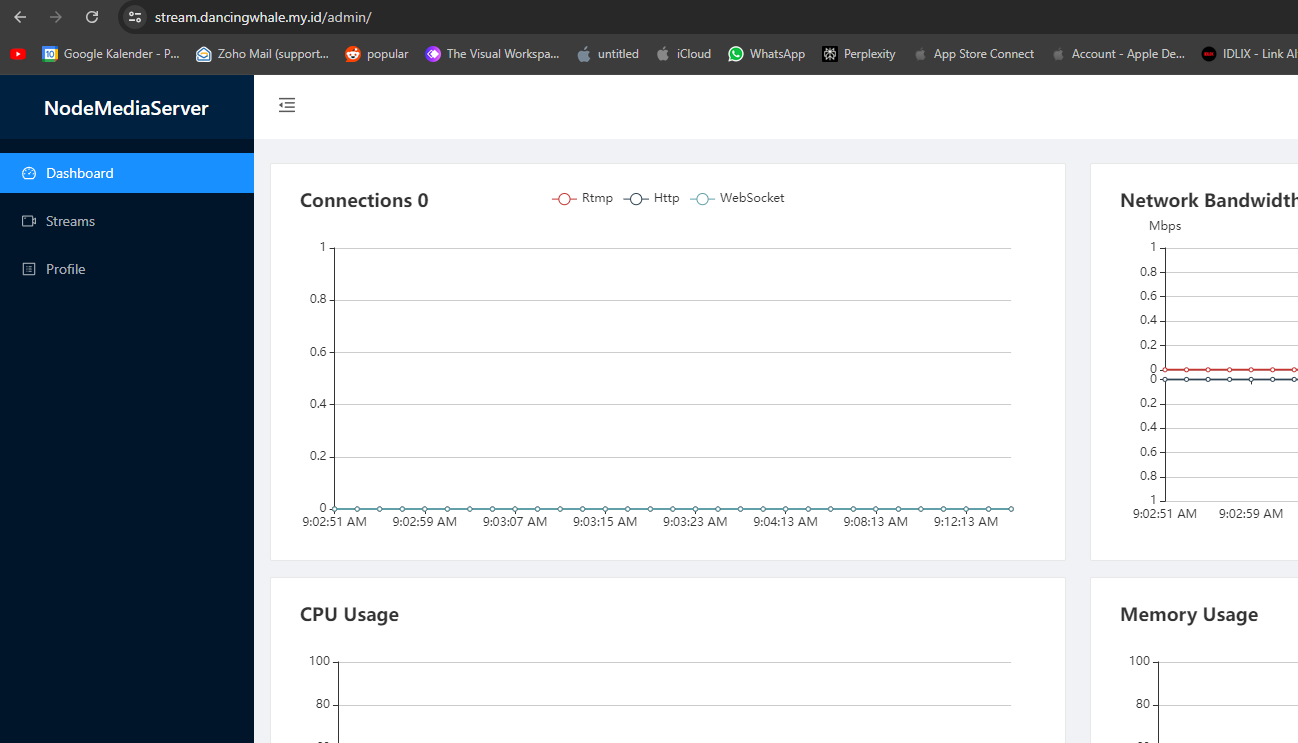
- Finally, open your browser and open your domain and at
/adminpath examplehttps://dancingwhale.my.id/admin, you will see the Node Media Server dashboard, this that your configuration is working correctly.