Setup Droplet to run Megoolive Livestreaming Server
After we create the Droplet, and point our domain to the Droplet, we will setup the Droplet to run our Megoolive Livestreaming Server, but before that we will need to access our Droplet. The method to access your Droplet depends on your operating system:
Accessing Your Droplet
Windows Users
- You can use PuTTY, which is a popular SSH client for Windows
- Alternatively, we recommend using Termius, a modern cross-platform SSH client with a user-friendly interface
- Download Termius from: https://termius.com/download
for this guide, we will be using Termius as our SSH client, since it provides a consistent experience across all platforms and includes helpful features like saved connections and credential management.
macOS Users
- You can use the built-in Terminal application
- For a more feature-rich experience, you can use:
- Termius - https://termius.com/download
- iTerm2 - A popular terminal replacement for macOS
Linux Users
- You can use the built-in terminal with the
sshcommand - For a GUI-based solution:
- Termius - https://termius.com/download
- Remmina - Available in most distribution package managers
For this guide, we'll be using Termius as our SSH client since it provides a consistent experience across all platforms and includes helpful features like saved connections and credential management.
Step No 1: Connect to your Droplet
-
Open Termius, Sign in or Create new Termius account
-
On the
Hoststab, click onNew Host
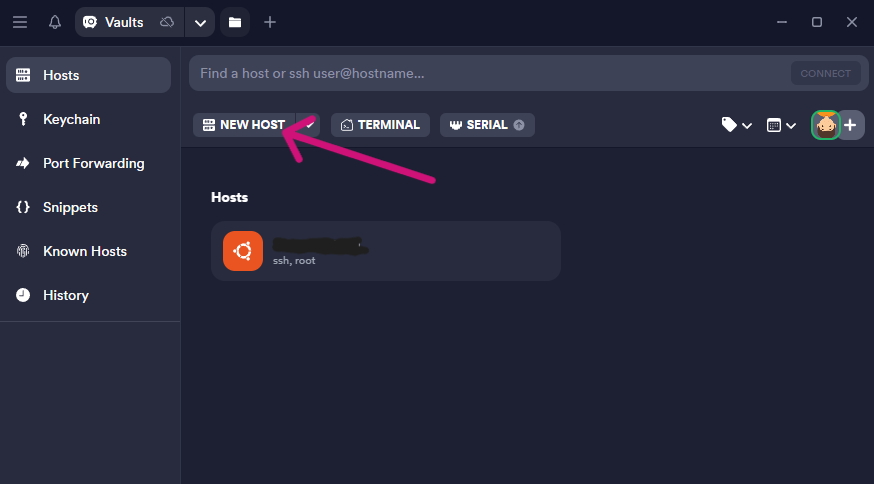
- You will be asked to fill the
Addresswith the IP Address of the Droplet that previously we created, you can grab the ip from the Digital Ocean Dashboard
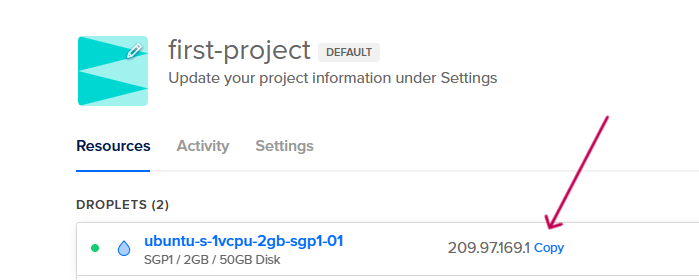
- After you fill the
Address, with you Digital Ocean IP Address
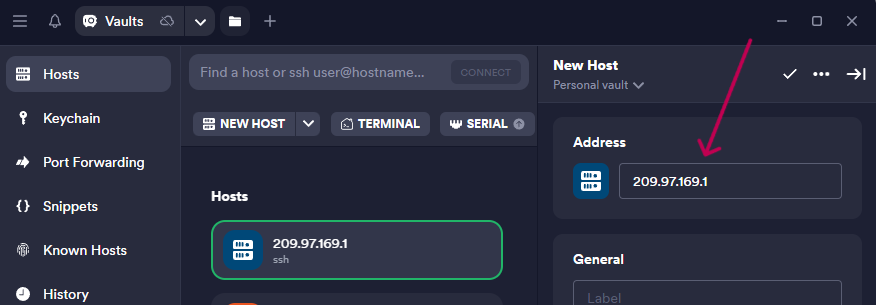
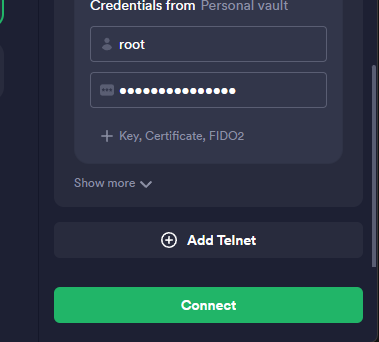
- Next you will be asked about the credentials to use to connect to the Droplet, since we are using Password Authentication, we will fill with the
rootusername and the password that we set when we created the Droplet, if you use SSH Key Authentication, you can choose that option.
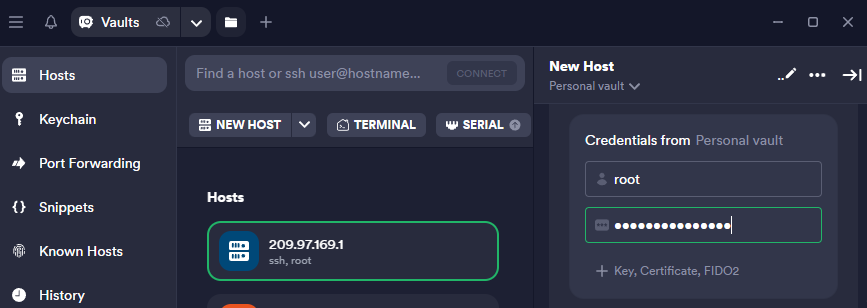
If you wanto use SSH Key to connect to your Droplet, go to this guide
- Next Click
Connect
-
If your password is correct, you can save the authentication method, and choose
Add & continue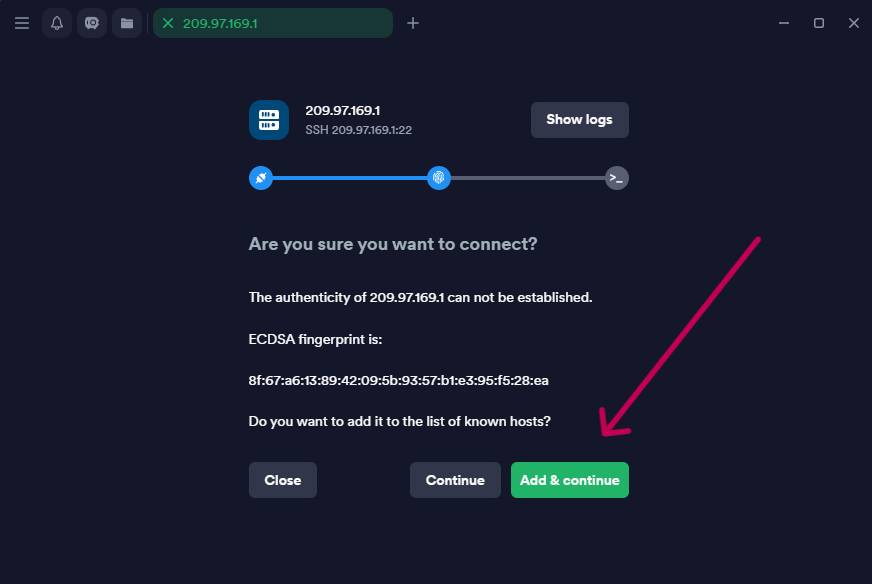
-
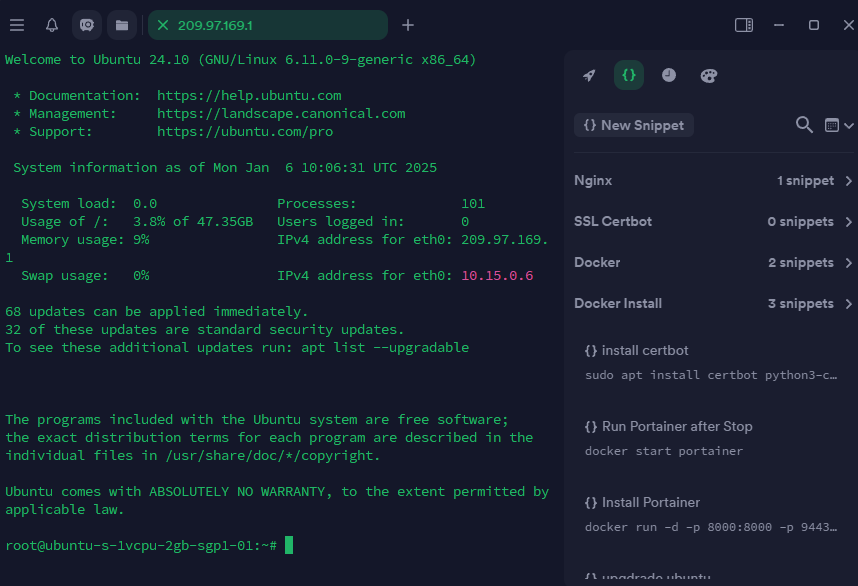
Now you are connected to your Droplet, and you can start to setup the Megoolive Livestreaming Server
- Next we will update the package manager running the following command:
sudo apt update
- Now we will upgrade the packages to the latest version running the following command:
sudo apt upgrade
- Next we will install the necessary Applications to run the Megoolive Livestreaming Server